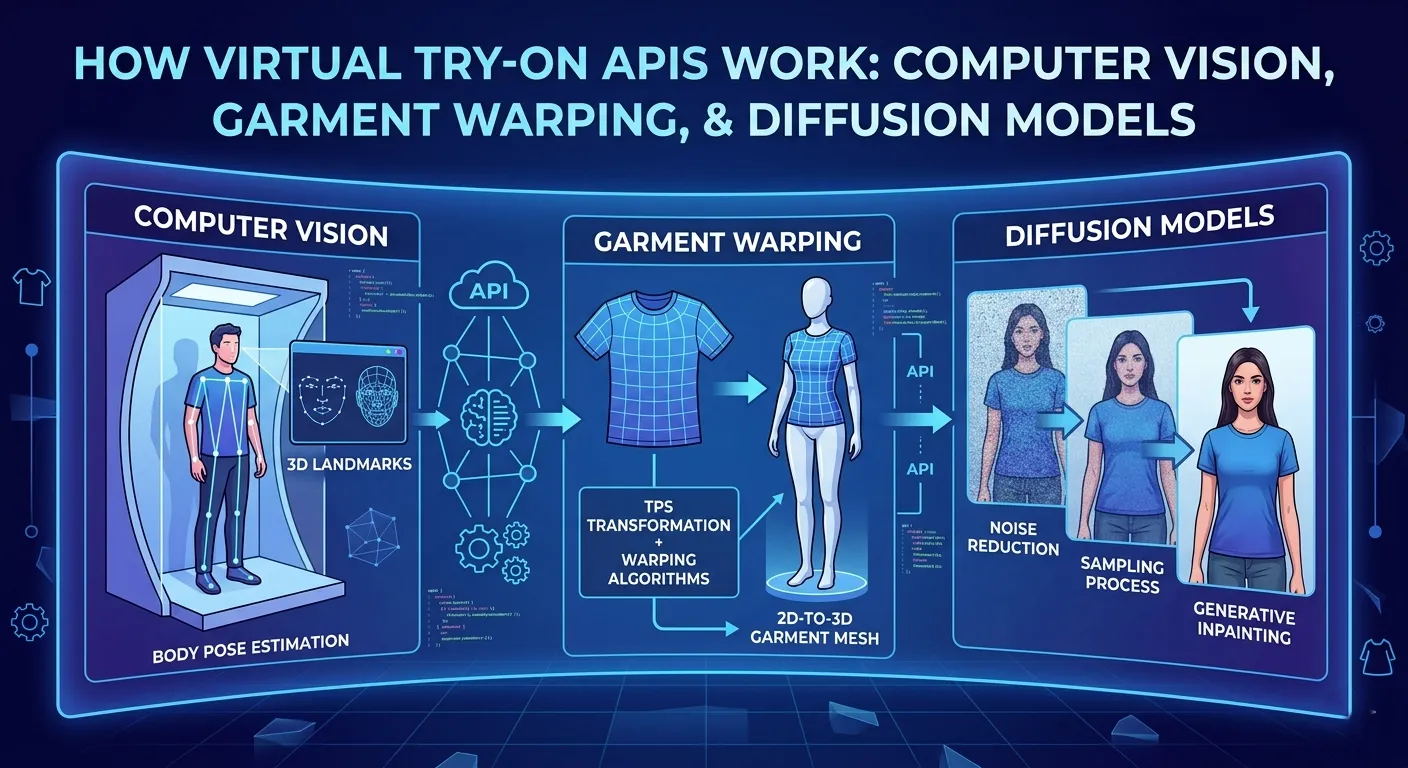
Most virtual try-on APIs work the same way on the surface: send two images, get one back. What differs is what happens between those two steps — and whether the API gives you any control over it.
This article walks through exactly how Fitroom’s API processes a try-on request, why the pipeline is designed the way it is, and what Fitroom offers that most competitors don’t. If you’re a developer evaluating integration options, or a non-technical reader trying to understand why virtual try-on works well on some inputs and poorly on others — this is the explanation that’s actually useful.
All technical details sourced from Fitroom’s official API documentation. For pricing, see our full API comparison.
What Actually Happens When You Call a Virtual Try-On API
Before getting into Fitroom’s specific endpoints, it helps to understand the underlying pipeline that every virtual try-on system runs — because the pipeline is why results vary, why processing takes time, and why input quality matters so much.
Step 1: Understand the person in the photo
The first thing the system needs to do is locate the human body in the model image. This means detecting key landmarks — shoulders, torso, waist, hips, arms — to understand the body’s pose and proportions. Without this, the system has no reference for where the garment should sit, how wide the shoulders are, or how long the torso is.
This is also why model images have requirements. A person facing sideways, sitting, or partially out of frame breaks this step. The system can’t accurately map garment placement on a body it can’t fully read.
Step 2: Understand the garment
The system then analyzes the clothing image — extracting its shape, texture, print details, and garment type (upper, lower, full body). This step preserves what makes the garment look like itself: the exact color of a logo, the weave pattern of a fabric, the fit of a collar.
This step is harder than it looks. A flat product image of a hoodie behaves differently when modeled on a body — the fabric folds, the hem drops differently, the sleeves interact with the arms. The system needs to understand the garment well enough to simulate that transformation accurately.
Step 3: Warp the garment onto the body
The garment is then reshaped to match the body’s pose and proportions. This isn’t a simple overlay — the system physically transforms the garment geometry to follow the body’s contours, stretch points, and natural drape directions.
This step explains why some garment types are harder than others. A t-shirt has simple geometry — minimal overlapping fabric, predictable drape. A hoodie has a hood that interacts with the neck and shoulders, a front pocket that creates a fold line, and a drawstring that affects how the hem sits. A dress involves full-body geometry across different fabric zones. More complexity means more ways the warping can go wrong — which is directly why output quality varies across garment types in any virtual try-on system.
Step 4: Generate the final image
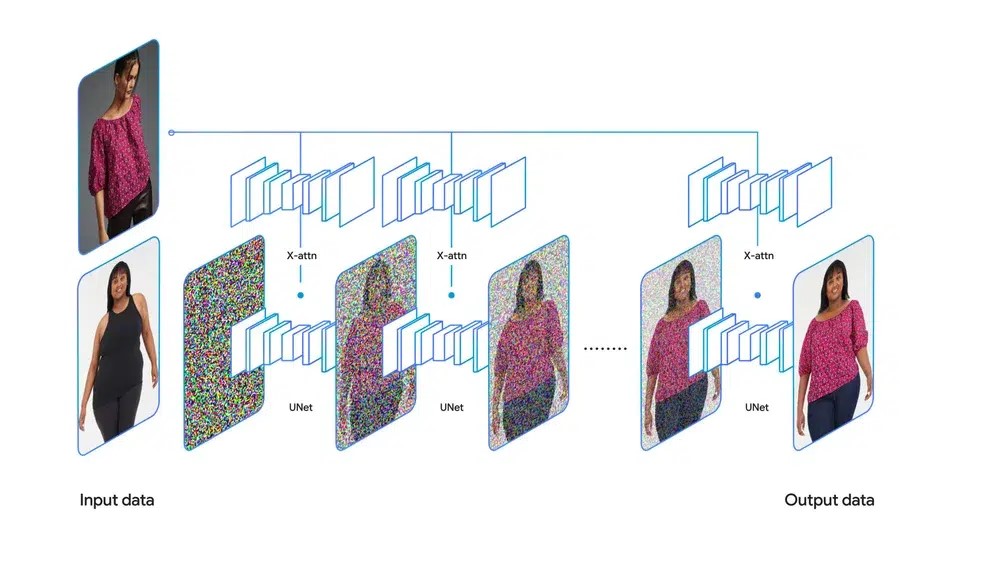
Modern virtual try-on systems use diffusion models for the final generation step. These models work by starting with noise and iteratively refining it toward a coherent image — guided by the body structure and warped garment from the previous steps.
This is the step that takes time. Standard mode runs a lighter diffusion pass — enough for clean, commercially usable output in approximately 9 seconds. HD mode runs more diffusion steps, producing finer texture detail at the cost of approximately 30 seconds of processing. There’s no shortcut: more detail means more compute.
The diffusion model is also why fine text and logos are the hardest things to preserve. The generation process operates at a pixel level across the whole image — preserving exact character shapes in a printed word is a different challenge than preserving fabric texture, and it’s where you see the most variation across different APIs.
Step 5: Polish and return
The final step handles lighting matching, edge blending where the garment meets the body, and shadow consistency. This is what separates a result that looks natural from one that looks obviously composited.
The entire pipeline runs asynchronously — meaning results aren’t instant. The system queues your request, processes it through all five steps, and returns a result URL when complete. This is why virtual try-on APIs use a task-based model rather than a synchronous request-response pattern.
Fitroom’s API: Four Endpoints, Two Workflows
Fitroom exposes four endpoints that map directly onto this pipeline. Two are for validation before you process anything. Two are for task creation and result retrieval.
Endpoint 1: Check Model Image
POST /api/tryon/input_check/v1/model · 0.5 credits
This endpoint analyzes a model photo before you run the try-on. It checks whether the image meets the requirements the pipeline needs: is there one person clearly visible, are they facing forward, is the body large enough in the frame, is the pose readable?
The response tells you two things: whether the image is usable (is_good: true/false), and which garment types that model image can support (good_clothes_types: ["upper", "lower", "full"]). A full-body standing photo will return all three. A cropped torso shot might only return upper.
Error codes are specific, not generic:
400001— No person detected400002— More than one person in frame400003— Person not facing forward400004— Person too small in image410001— Warning: person slightly small, crop recommended410002/410003— Warning: pose is unclear, results may vary
The difference between 400x and 410x codes matters in production. A 400x means the image will fail or produce a bad result — reject it before spending a try-on credit. A 410x means the image is borderline — you can proceed but should warn the user the result may not be optimal.
Why most competitors don’t have this: FASHN.ai, Claid, and Kling don’t offer a dedicated model validation endpoint. You find out your image is unsuitable when the generation fails or produces a distorted result — after the credit is consumed.
Endpoint 2: Check Clothes Image
POST /api/tryon/input_check/v1/clothes · 0.5 credits
This endpoint validates the clothing image and auto-detects the garment type. The response returns is_clothes: true/false and clothes_type: "upper" | "lower" | "full".
This serves two practical purposes. First, it catches unsuitable inputs — a lifestyle photo that includes a person, a multi-item flat lay, an image with heavy background noise — before the try-on runs. Second, it removes the need to hardcode cloth_type in your Create Task request. You can let the validation endpoint auto-detect the garment type and pass it forward programmatically.
For apps where users upload their own clothing images — not curated product shots — this endpoint is the difference between consistently clean results and unpredictable output.
Bonus: Clothes Classifier
Beyond basic validation, Fitroom’s clothes endpoint can auto-tag garments by category, occasion, and style. This is a separate use case from try-on validation — useful for building product catalog features, recommendation systems, or auto-tagging pipelines without manual curation. At 0.5 credits per call, it’s the same cost as the validation endpoint.
Endpoint 3: Create Try-On Task
POST /api/tryon/v2/tasks · 1 credit per image
This is the core try-on endpoint. You upload a model image and a clothing image, specify the garment type, and optionally enable HD mode. The API returns a task_id immediately — the try-on runs asynchronously in the background.
Fitroom supports four cloth_type values:
upper— tops, shirts, jackets, sweaters, blazerslower— pants, shorts, skirtsfull_set— dresses, jumpsuits, full-body outfitscombo— upper + lower simultaneously in one request
The combo type is the one that matters most for POD sellers and fashion brands building outfit pages. Other APIs require two separate calls — and two credit charges — for an outfit. Fitroom processes both garments in one request for one credit.
HD mode adds an optional parameter: hd_mode=true. This increases processing time from ~9 seconds to ~30 seconds and produces output up to 2048px. For product pages where image quality directly affects purchase decisions, HD mode is worth the wait. For consumer apps where users want near-instant feedback, standard mode is the right default.
Endpoint 4: Get Task Status
GET /api/tryon/v2/tasks/:id
After creating a task, you poll this endpoint to track progress and retrieve the result. The response includes a status field (CREATED → PROCESSING → COMPLETED / FAILED) and a progress value from 0 to 100.
The progress field is genuinely useful for UX — you can drive a real progress bar in your interface rather than showing a generic spinner. Poll every 1–2 seconds. When status hits COMPLETED, the response includes a download_signed_url with the final image. Use it promptly — signed URLs are temporary.
If a task returns FAILED, that credit is not charged.
Two Integration Workflows and When to Use Each
Fitroom’s documentation describes two distinct workflows. The choice between them depends on your use case.
Recommended workflow: validate first
For production applications where users upload their own photos — e-commerce storefronts, consumer apps, POD platforms — this is the right default:
- Call Check Model Image on the user’s photo. If
is_good: false, return a specific error message to the user before spending a try-on credit. Ifis_good: true, capturegood_clothes_typesfor the next step. - Call Check Clothes Image on the garment. Capture
clothes_typeto use as thecloth_typeparameter in the next step. - Call Create Try-On Task with the validated inputs.
- Poll Get Task Status every 1–2 seconds until
COMPLETED.
Total cost: 0.5 + 0.5 + 1 = 2 credits per successful try-on. In exchange, you eliminate the failure cases that waste credits and give users actionable feedback when their photo doesn’t meet requirements.
Quick workflow: skip validation
For curated catalogs where you control both the model photos and product images — batch processing a product catalog, for example — validation is often unnecessary. You know the inputs are clean. Skip directly to Create Task and poll for results.
Total cost: 1 credit per image. Faster and cheaper when inputs are reliable.
What Fitroom Does That Most Virtual Try-On APIs Don’t
If you’ve read our full API comparison or the FASHN.ai alternatives guide, you already know how Fitroom’s pricing compares. But the technical differentiation goes beyond cost.
Input validation before you spend credits
No other API in our benchmark — not FASHN.ai, not Claid, not Kling, not Photoroom — provides dedicated endpoints to validate model and clothing images before running the try-on. You either get a failed task after the credit is consumed, or a result that looks wrong with no explanation of why.
Fitroom’s approach is different: validate cheaply (0.5 credits), fix the input, then run the try-on. In high-volume production environments with user-uploaded images, this changes the economics of failures significantly.
Combo try-on in one request
Processing a full outfit — top and bottom — requires two API calls on every other platform. That’s two credits, two sets of processing time, and two results that need to be reconciled into a single user experience. Fitroom’s combo cloth_type handles both garments in one request, one credit, one result. For brands selling coordinated looks or POD sellers featuring outfit combinations, this is a meaningful difference.
Clothes classifier as a standalone feature
Most virtual try-on APIs are narrow pipelines: in goes a garment, out comes a try-on result. Fitroom’s clothes validation endpoint doubles as a general-purpose classifier — auto-tagging garments by category, occasion, and style at 0.5 credits per call. For teams building product catalogs or recommendation features alongside try-on, this removes a separate tooling dependency.
Real-time progress tracking
The Get Task Status endpoint returns a progress field from 0–100 as the task runs. Most async APIs return binary status — either processing or done. Fitroom’s granular progress enables real progress bars rather than indeterminate spinners, which measurably improves user experience during the 9–30 second wait.
Flat credit pricing — no resolution multipliers
One credit equals one image, regardless of whether you use HD mode or standard mode. FASHN.ai charges 2–5 credits per image depending on resolution and quality settings — a cost structure that’s easy to underestimate at scale. Fitroom’s flat model makes cost forecasting straightforward: you always know exactly what a batch of images will cost before you run it.
Input Guidelines That Affect Output Quality
Understanding the pipeline makes these guidelines intuitive rather than arbitrary.
Model images: 2048px recommended, full body, facing forward, single person, simple background. Each of these requirements maps to a specific pipeline step — the pose detection step needs a clear body, the segmentation step needs a simple background to separate body from environment, and the warping step needs the full body visible to correctly position all garment zones.
Clothing images: 1024px recommended, flat lay or ghost mannequin, solid or white background, single item fully visible. The garment representation step extracts features more cleanly from a flat, isolated image than from a lifestyle shot with background objects or partial cropping.
HD mode: Use it for product pages and anywhere the output will be displayed at full size. Skip it for thumbnails, previews, or any flow where speed matters more than pixel-level detail.
Polling interval: Every 1–2 seconds. Implement exponential backoff if you’re running concurrent tasks at high volume to avoid rate limits.
Frequently Asked Questions
How does Fitroom virtual try-on API work?
Fitroom’s API is a four-endpoint pipeline: optionally validate your model photo and clothing image first (0.5 credits each), then create a try-on task (1 credit) that processes asynchronously, then poll for the result. Standard processing takes approximately 9 seconds. HD mode takes approximately 30 seconds and produces output up to 2048px.
Why does virtual try-on take 9 seconds instead of returning instantly?
Virtual try-on is a multi-step AI pipeline — pose detection, body segmentation, garment warping, and diffusion-based image generation — that must run sequentially. Standard mode runs a lighter diffusion pass in approximately 9 seconds. HD mode runs more diffusion steps for finer detail, taking approximately 30 seconds. There’s no shortcut: more quality means more compute time.
What makes Fitroom API different from other virtual try-on APIs?
Fitroom is the only virtual try-on API in our benchmark that offers dedicated input validation endpoints (Check Model Image, Check Clothes Image) before running the try-on. It also supports combo try-on — upper and lower garments processed in a single request — and charges one credit per image regardless of resolution, with no multipliers.
What happens if the model or clothing image is rejected?
If you call Check Model Image first and the image is rejected, you get a specific error code (e.g. 400003: person not facing forward) and no try-on credit is consumed. If you skip validation and go straight to Create Task, a failed task is not charged — but you lose the processing time and get less specific feedback on why it failed.
Does Fitroom support full outfit try-on?
Yes. Fitroom’s combo cloth_type processes upper and lower garments simultaneously in a single API request for one credit. Most other virtual try-on APIs require separate requests — and separate credit charges — for each garment in an outfit.